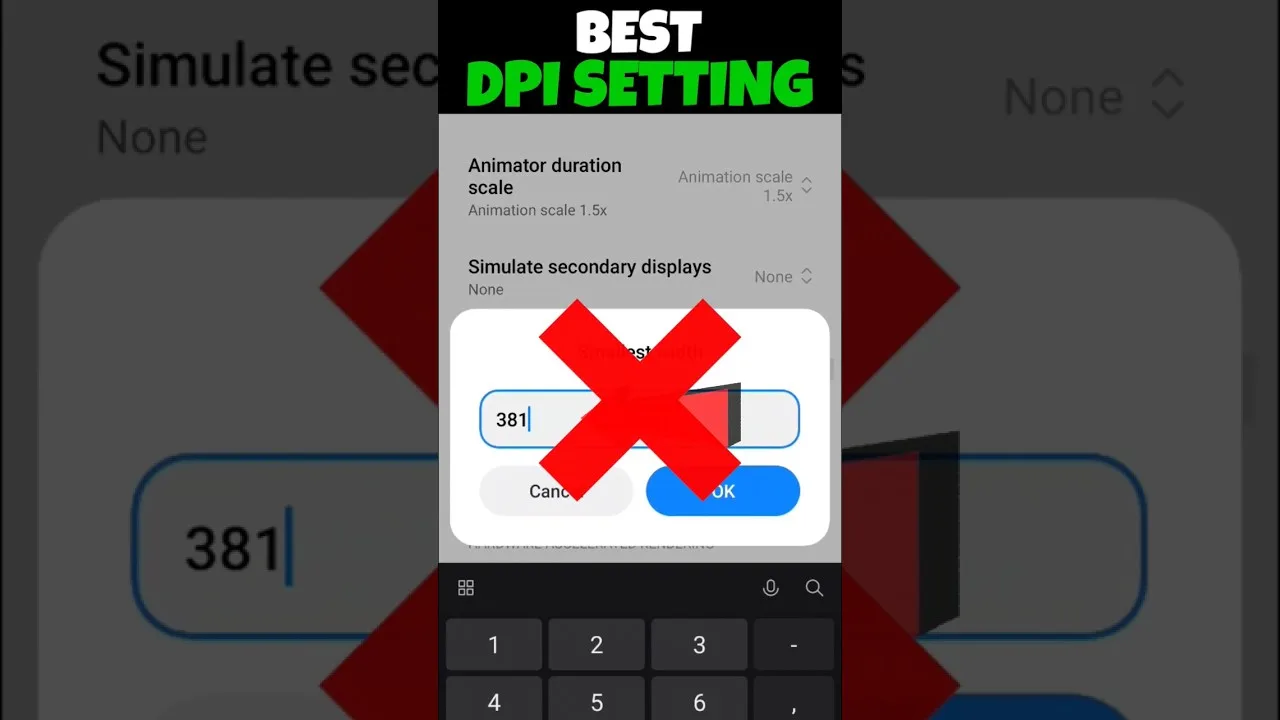
DPI, or dots per inch, describes how densely your screen renders interface elements, and on Android the display size setting effectively changes how much fits on screen and how large touch targets appear. For players, the practical effect is about control feel: the same swipe can feel faster or slower depending on how the display is scaled.
Users of Unlock Beta FF tool for Android usually meet DPI while chasing smoother drag aim. It is a powerful adjustment, but it is also easy to misuse. This guide explains what changing DPI actually does, how to test values safely, and why small changes beat extreme ones for nearly every player and every phone.
What Changing DPI Really Does
Raising the DPI value in developer or display settings makes interface elements smaller and fits more content on screen. In a game, buttons, menus, and HUD elements shrink, and your effective swipe behaviour changes because the system maps movement across a differently scaled display. Lower values make everything larger and easier to tap, at the cost of screen space.
DPI is not a graphics quality setting and it does not add frames or processing power. Any benefit comes from control feel and visibility, not performance magic. Understanding that distinction protects you from extreme values copied from videos that promise impossible results on hardware that cannot deliver them.
Finding a Sensible Testing Range
Start from your phone's default value and test modest steps in either direction, playing properly between changes. Many players settle slightly above default because smaller HUD elements free up the view and drags feel more responsive, while going far above default makes buttons hard to tap and text hard to read under pressure.
Write down every value you test and how it felt after several matches, not after one drag in the menu. First impressions of a DPI change are unreliable because novelty feels like improvement. The record also gives you a safe way back: if a value makes the whole phone awkward to use, you already know your last good number.
DPI and Sensitivity Work Together
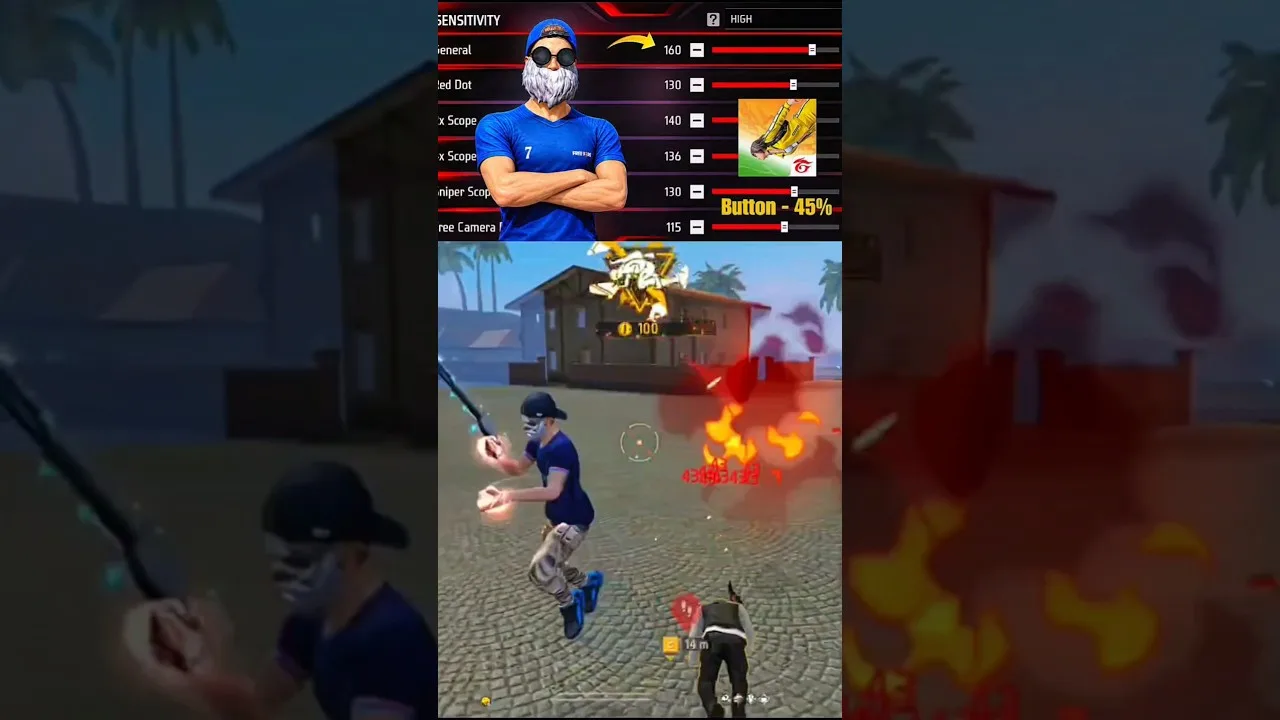
DPI and in-game sensitivity multiply each other's effect. Raising both at once can make aim feel completely uncontrollable, while raising DPI alone may let you lower in-game sensitivity for finer control at the same turn speed. That trade is the real technique: display scaling for responsiveness, in-game values for precision.
Change one system at a time and retest, following the method in Unlock Beta FF sensitivity settings explained. Players who change DPI, general sensitivity, and scope values in the same session cannot tell which change helped, and they usually end up further from a good setup than where they started, with no record of how to get back.
Device Limits and Readability
Small phones suffer most from high DPI values, because already compact screens lose tap accuracy when every element shrinks. Large phones tolerate higher values better. Heat and battery also matter indirectly: a phone working hard in long sessions needs settings you can still read and tap accurately when your hands are tired and the screen is warm.
If you share the phone with everyday apps, remember DPI changes apply system-wide on many devices. Banking, messaging, and browsing all inherit the same scaling. A value that feels clever in a match but makes daily use miserable will not survive the week, so judge every test value by whole-phone comfort, not game feel alone. Broader device advice in Unlock Beta FF device compatibility guide helps here.
A Safe Routine for DPI Changes
Change DPI only when you have time to test calmly, never minutes before an important match. Note the default value before touching anything, step modestly, play several matches, and keep or revert based on your notes. Rebooting after a change is sensible on many Android versions because it lets the system apply scaling cleanly everywhere.
Treated with that patience, DPI becomes a useful fine-tuning tool rather than a gamble. Combined with stable in-game sensitivity, the right value makes drags feel natural, targets easier to check, and menus still comfortable to use. That balanced result, not the highest number you can enter, is what a good DPI setup actually looks like.
Reverting a DPI Change Safely
Every player who experiments with DPI should know the way back before they need it. Keep your default value written in the same note as your tested values, and remember where in your settings the control lives, whether that is a display size menu, a developer option, or a smallest-width field. If a test value makes text unreadable or the interface hard to operate, do not panic and do not tap randomly: return to the setting by the route you came, restore the recorded default, and restart the phone so every app redraws at the familiar scale.
A change that feels wrong in the first minutes sometimes settles after a day of normal use, so distinguish discomfort from dysfunction. Tiny but tappable elements with slightly unfamiliar spacing are discomfort, worth a fair trial. Missed taps, unreadable messages, and controls you cannot hit reliably under pressure are dysfunction, worth an immediate revert. Knowing that difference lets you experiment bravely without trapping yourself in a setup that harms your everyday phone use, which no aim adjustment is ever worth.
Keep in mind that no DPI value compensates for an unpractised hand. Display scaling refines the instrument, but your hours of play are what learn to use it. Players who settle on a sensible value early and then invest their attention in real matches improve faster than players who keep hunting for a number that will aim for them. Choose carefully, test honestly, write the result down, and then let the setting disappear into the background where good settings belong, quietly supporting the skills you are actually building.