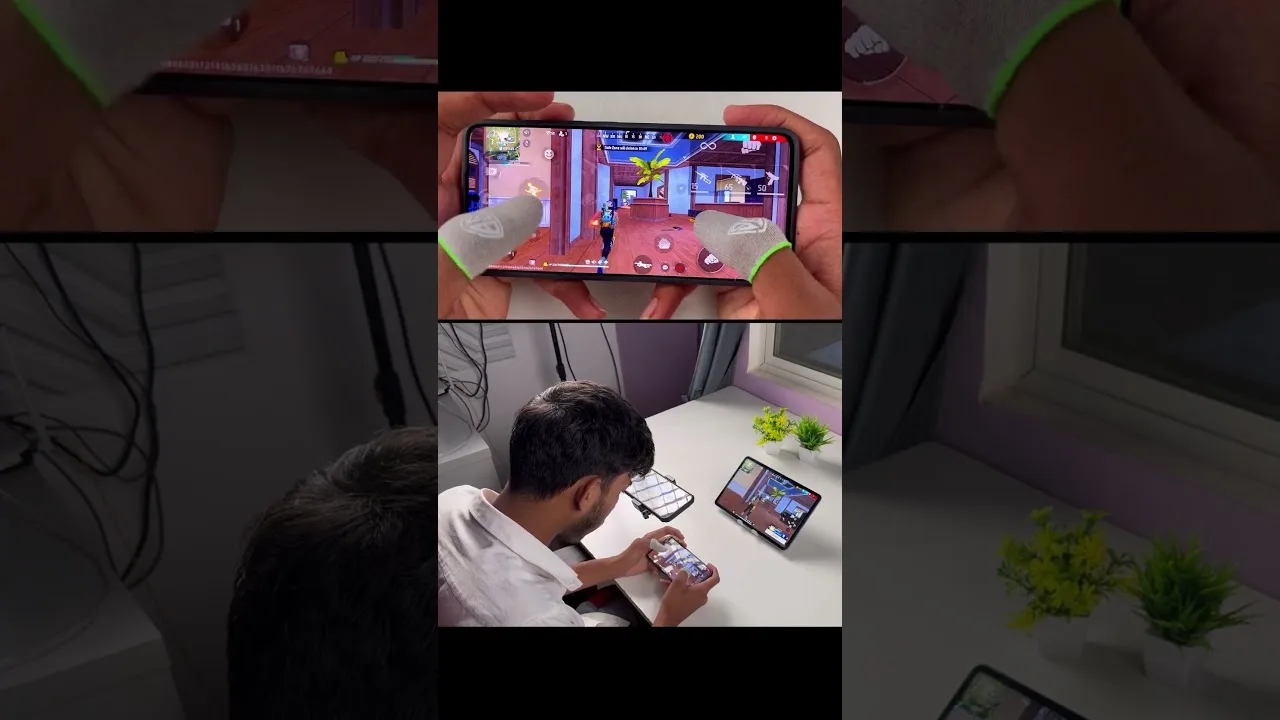
Phone size changes how every setting feels. The same sensitivity value produces a different turn on a compact screen than on a large one, because your thumb travels a different distance and the interface elements sit at different scales. Settings advice that ignores screen size is therefore only half advice.
Players configuring Unlock Beta FF APK for Free Fire across different devices often copy values between phones and find them mysteriously wrong. This guide explains how compact, standard, and large phones each behave, so you can translate a good setup from one device to another instead of starting again from zero every time.
Compact Phones Need Travel Help
On a compact phone, a full swipe covers less physical distance, so completing a fast turn usually needs higher sensitivity values than the same player would use on a large device. The trade-off is precision: higher values on a small surface make fine corrections twitchy, so compact-phone players benefit from raising general sensitivity while keeping scope values calmer.
Interface scale matters just as much. Aggressive display scaling shrinks buttons that are already small, which costs tap accuracy in busy moments. Compact devices usually settle at modest scaling, keeping controls readable and tappable, and accept a slightly busier screen as the price of reliable touches during fast fights.
Standard Phones Are the Reference Point
Most published settings advice quietly assumes a standard-sized phone, which is why those values transfer best to similar devices. If your phone sits in the middle of the size range, community values and guide ranges are a reasonable starting point, needing only the small personal adjustments described in Unlock Beta FF sensitivity settings explained rather than a redesign.
Standard phones also balance grip and reach comfortably: one-handed play is possible, two-handed play is natural, and button layouts rarely need moving for reach. If you upgrade or downgrade from a standard phone, treat your old values as a reference to translate, not a set to copy blindly onto different glass.
Large Phones Need Distance Management
Large screens give long swipe distances, so many players lower sensitivity slightly and gain precision for free, because the same turn is spread across more glass. The challenges move elsewhere: reaching far corners, holding a heavier device through long sessions, and HUD elements that sit further from your thumbs than they did on a smaller phone.
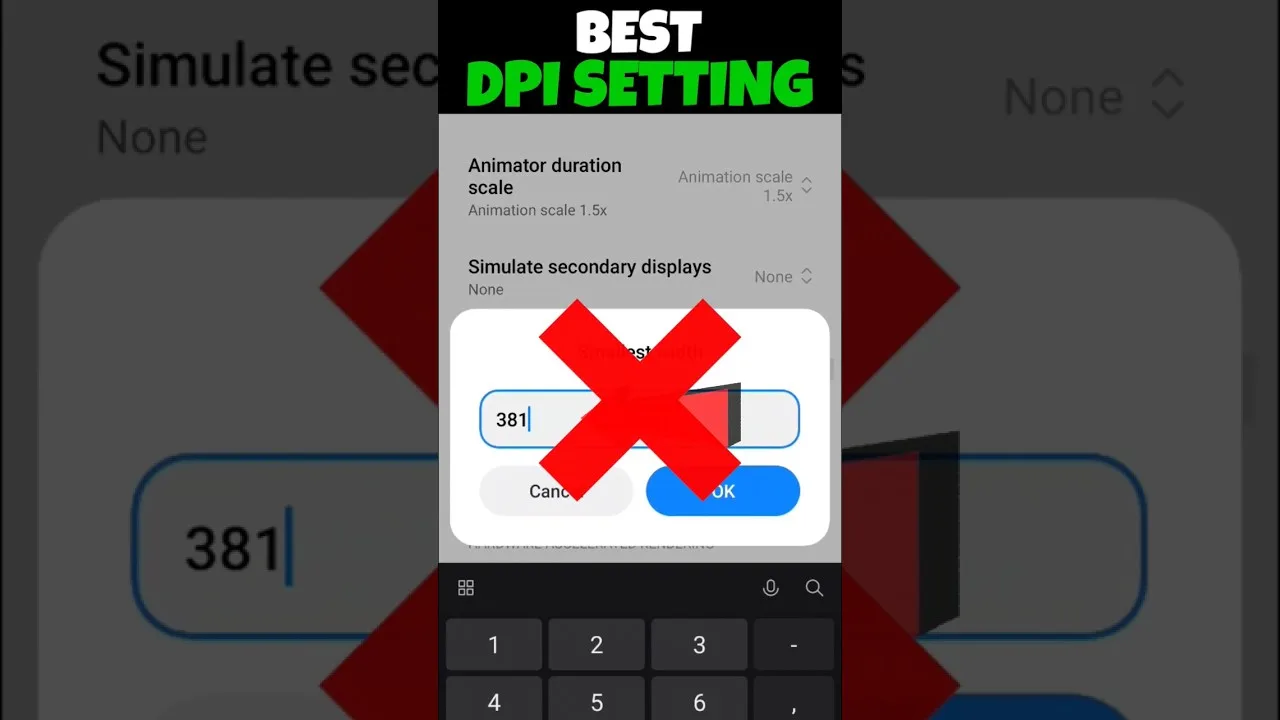
Layout customisation earns its keep here. Moving frequent controls within comfortable reach matters more on a large device than any single sensitivity number, and modest display scaling can pull the interface into a friendlier arrangement. The approach in Unlock Beta FF DPI settings guide helps you test scaling changes by size rather than by copying values tuned for someone else's screen.
Translating Settings Between Devices
When you change phones, change one size step at a time in your expectations: moving from compact to standard, expect to lower sensitivity slightly; from standard to large, lower again or enjoy the extra precision at the same values. Test each translation in training, focusing on the full turn, the drag stop, and tracking at your usual range.
Keep a separate recorded setup per device if you play on two phones, because a single compromise set usually satisfies neither. Your backup habit makes this easy: one labelled record for the compact phone, one for the large one, each restored when you pick that device up, with no guessing and no weekly re-tuning.
Size Is a Starting Point, Not a Rule
Hand size, grip style, and whether you play with a case or a controller attachment all modify what your phone's size means in practice. Two players with identical phones can honestly need different values. Use the size guidance here to choose your starting range and the direction of your adjustments, then let your own testing settle the final numbers.
That is the healthy way to use any settings guide: size tells you where to begin, your hands tell you where to finish. Players who understand why their values suit their screen stop chasing other people's numbers, and their aim improves for the simplest reason of all: their setup finally matches the device actually in their hands.
Accessories Change the Equation Too
Phone size is the starting variable, but accessories rewrite it quickly. A thick case adds weight and edge grip that change how far your thumbs comfortably travel. A screen protector with more glide makes the same sensitivity feel faster, while a matte one adds drag that can make considered values feel suddenly heavy. Trigger attachments and controller grips move your hands into new positions entirely, invalidating layout choices that were perfect for bare thumbs on the bare device.
Whenever an accessory changes, retest rather than assume. Run the same three checks: the full turn, the drag stop, and tracking at your usual range. Small nudges usually restore the feel, because the accessory changed your mechanics by a little, not by a lot. Record the adjusted values against the accessory in your notes, so swapping a case or protector becomes a known restore instead of a fresh week of mysterious aim problems blamed on the game.
When friends ask for your settings, share your reasoning along with your numbers. Explaining that your values assume a large screen and long swipes teaches them more than the digits alone, and it protects them from the disappointment of copying a setup built for different glass. Settings culture improves when players trade principles instead of screenshots, and every conversation that starts with phone size and grip ends closer to a setup that genuinely fits the person asking.